

Setting Up OneDrive and Enabling Backup for Key Folders
This guide will walk you through setting up OneDrive and configuring it to back up important folders such as Desktop, Documents, and Pictures to the cloud.
Please follow these steps on both your desktop and laptop devices.
Step 1: Locate the OneDrive Application
On your device, use the search bar (typically found in the Start menu) to search for “OneDrive”.
Launch the OneDrive application.

Step 2: Sign In to OneDrive
In the taskbar notification area (bottom-right corner), locate and click the grey cloud icon.
When the window appears, click the “Sign in” button.


Step 3: Enter Your Email Address
A new window will appear prompting you to enter your email address.
Input your full email address (including any identifying number if applicable), then click “Sign In”.

Step 4: Enter Your Password
On the next screen, enter your email account password and click “Next”.

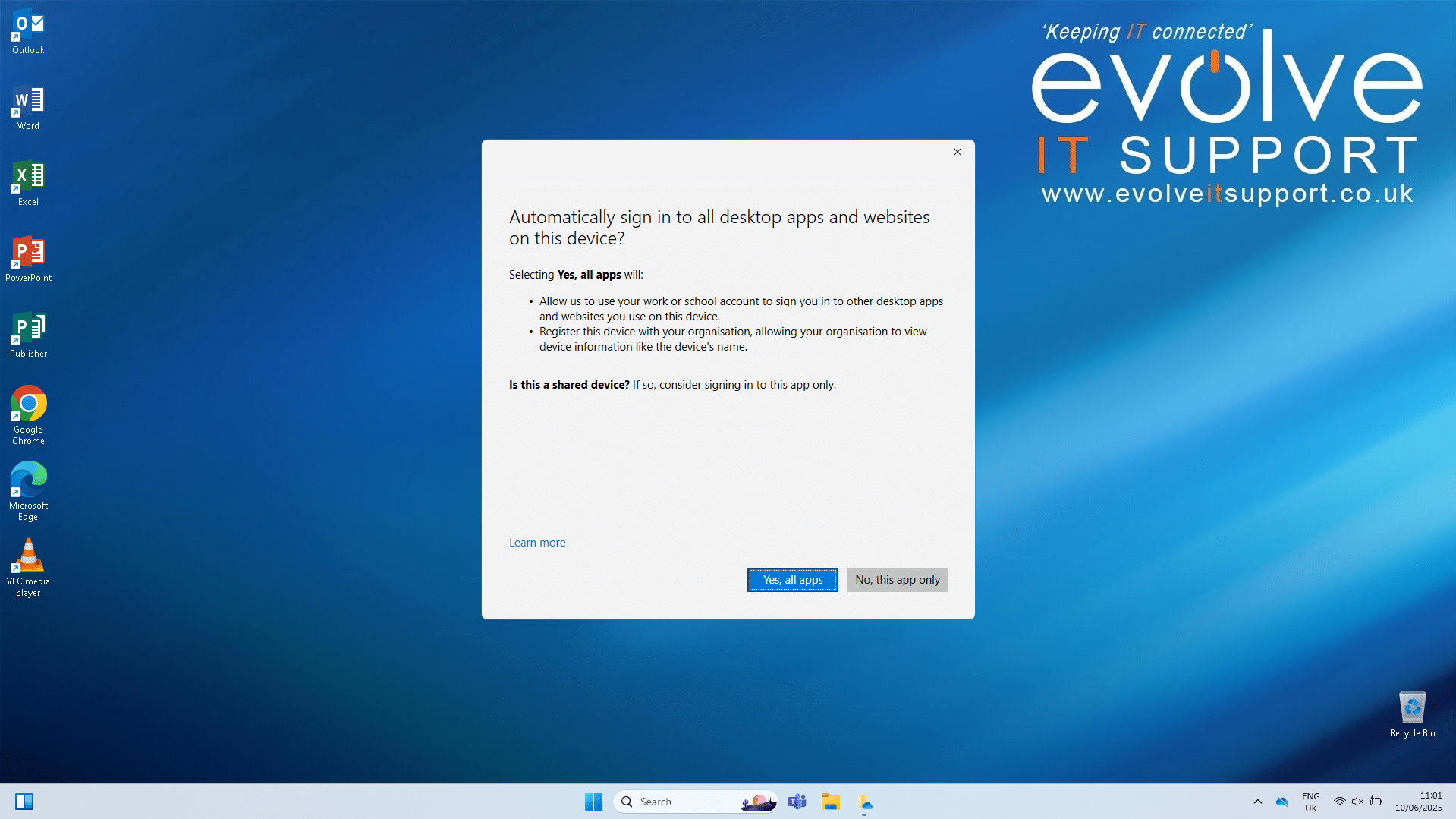
Step 5: Sign in to all Applications
Once signed in, you may be proompted to sign in to all Applications, Click “Yes, all apps”.
Step 6: Configure Backup Options
Once signed in, you will be prompted to enable backup for key folders: Desktop, Documents, and Pictures.
Enable all available options if possible and click “Start backup”.

Step 7: Confirm Sync Status
Once setup is complete, the OneDrive icon in the taskbar will change from a grey cloud to a blue cloud, indicating that files are now syncing successfully.
If you encounter any issues during setup or require further assistance, please contact the IT support team via logging a ticket – Email to help@evolveitsupport.co.uk.
